
v1.3 · Mac / iPhone / Android
Honeycomb wall · Keyboard launcher · Phone remote for Mac
TreeletHub turns your Mac into a launch pad: a Watch-style honeycomb wall for apps, web links, and system actions; Pro unlocks the Keyboard Launcher and Dynamic Island workspace. On the same Wi‑Fi, pair an iPhone or Android and tap to launch—less hunting across a cluttered desktop.
A free starter set of launch items is included. Pro is a one-time purchase (not a subscription) for unlimited items, Dynamic Island, and Keyboard Launcher.
Direct download (CDN)
Mac: open the DMG and drag into Applications; if Gatekeeper blocks first open, allow in Privacy & Security or right-click → Open. Android: allow installs from unknown sources, then install the APK.
Or install from the stores
Keep Mac and phone on the same Wi‑Fi; allow Local Network on first use. Release notes: GitHub Changelog.
What’s new visually
1.3 highlights: honeycomb wall, Island widgets, and Keyboard Launcher.
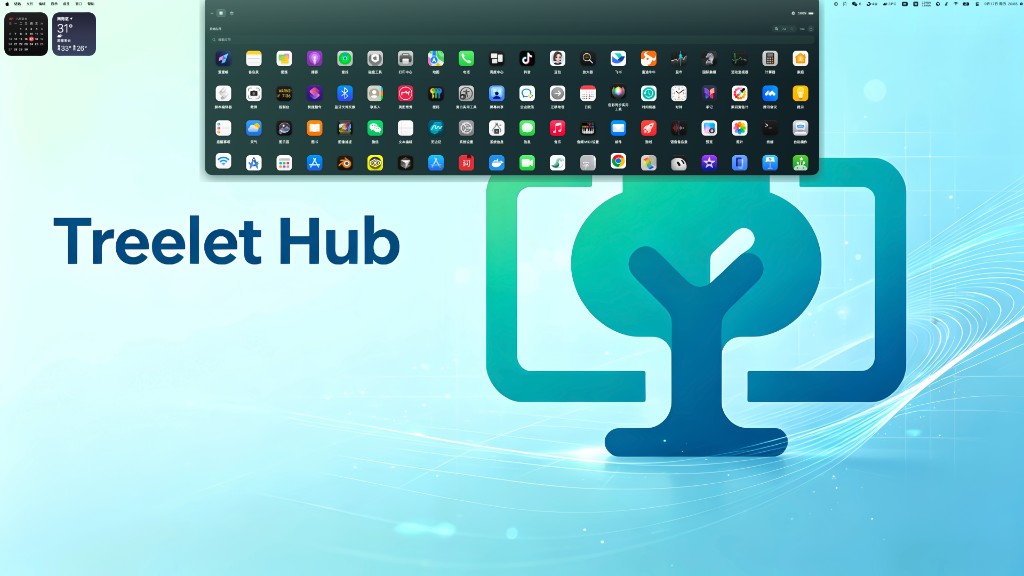
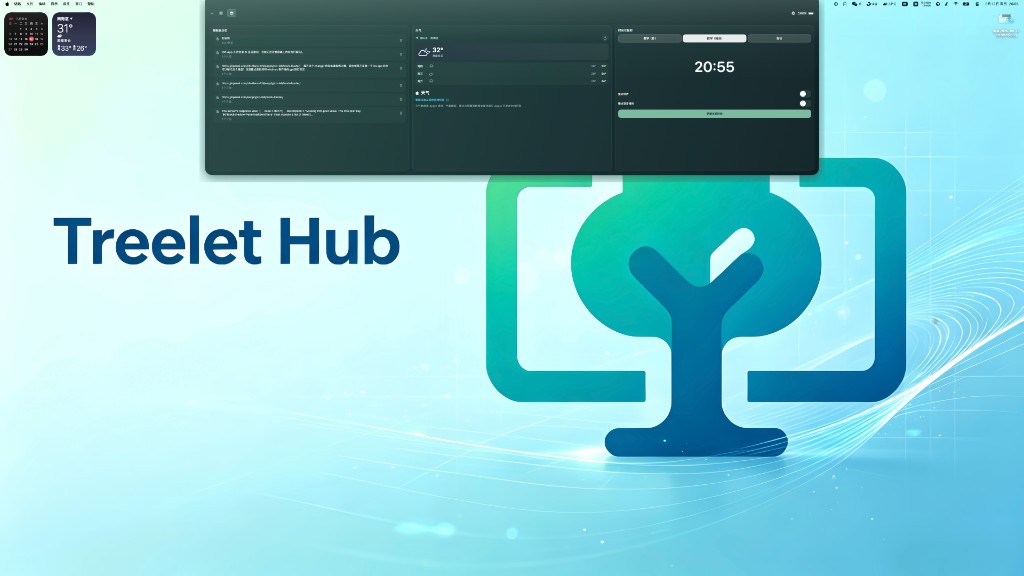
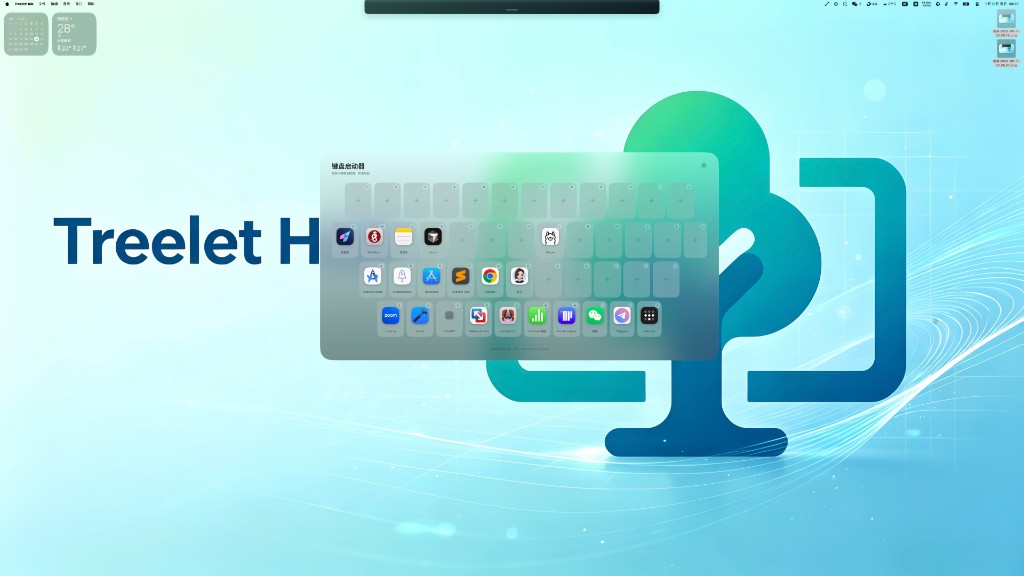
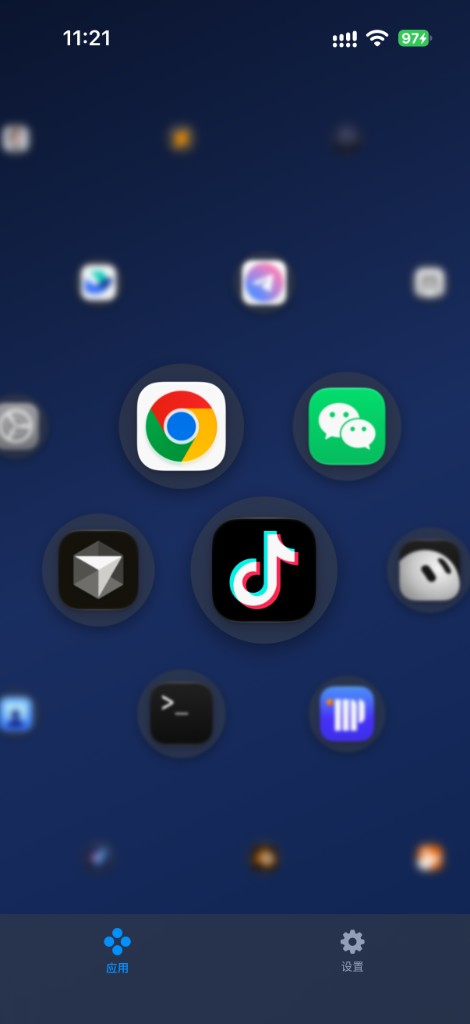
Highlights in this release
Honeycomb launch wall
Watch-style layout: pinch to zoom, drag to browse, dashed “+” to add apps, web links, or system actions. Free for up to 10 items; Pro unlocks unlimited. Layout syncs to paired iPhone, Android, and Watch.
Keyboard Launcher (Pro)
Release Control to show an on-screen keyboard overlay; press a mapped key to launch. Control + key shows or hides the mapped app from any foreground app. First enable auto-fills by app-name initial; click to replace, drag to swap. Needs Input Monitoring; keystrokes are not logged or uploaded.
Dynamic Island workspace (Pro)
A slim strip at the top of the screen expands on hover or tap: system app wall, media, weather, clipboard, file staging, and pairing widgets side by side.
Cross-device remote
Pair iPhone, Android, or Watch with a 6-digit code on the same LAN; tap to launch Mac apps, two-finger swipe down to show the desktop. Pairing and control stay between your devices by default.
Capabilities follow the shipped build on each platform. Full history: CHANGELOG.
Three steps
- Install TreeletHub on Mac (DMG or Mac App Store) and note the 6-digit pairing code.
- Install on iPhone or Android, open “Connect to Mac,” enter the code, and allow Local Network when asked.
- Add apps or shortcuts on the Mac honeycomb wall; after sync, launch from the phone. Unlock Pro on Mac for Keyboard Launcher and Dynamic Island.
Platforms
Configure & launch
Honeycomb wall, Keyboard Launcher, Dynamic Island; receive commands from paired phones. macOS 14.6+ recommended.
Remote
Pair; synced honeycomb; tap to launch; drag to reorder. Apple Watch sync supported.
Remote
APK or Play install; honeycomb synced with Mac; two-finger swipe down shows the desktop.
What’s new
1.3.0 · macOS · 2026-09-18
Official Mac DMG: honeycomb wall, one-time Pro, Dynamic Island, and Keyboard Launcher. CDN: TreeletHub.dmg
1.3.1 · Android · 2026-09-18
Honeycomb wall aligned with iPhone; tap to launch Mac apps; two-finger swipe down shows desktop. CDN: TreeletHub.apk
Privacy & security
Pairing, layout sync, and remote launches run on your local network. That traffic stays between your devices—we do not route it through our servers or upload your hub content for processing.
Exceptions include weather and similar features that fetch data over the internet (with location where required). Keyboard Launcher only listens for Control and shortcuts—it does not log or upload keystrokes. See the Privacy Policy in the footer for details.